A LITTLE HELP GOES A LONG WAY
From download
to done.
Find your files, get the print size right, and get back to making something yours.
LET’S FIND YOUR NEXT STEP
A little help.
Made for your project.
Choose what you have and what you need. Follow the matching steps below.
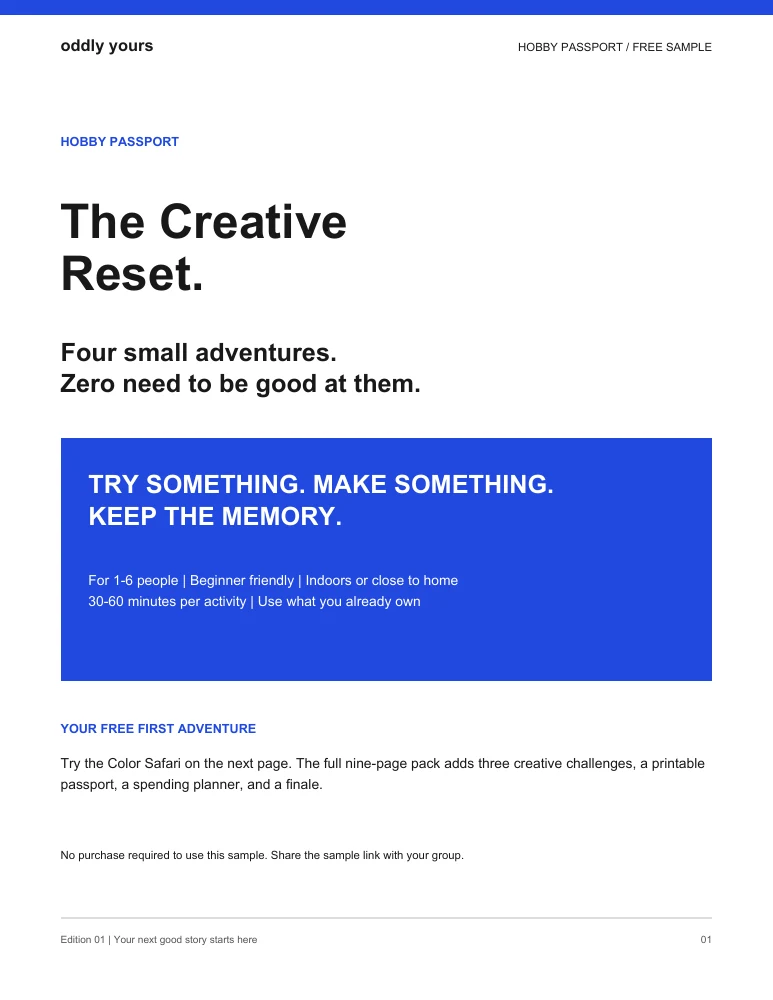
Hobby Passport: The Creative Reset
Nine-page PDF
Showing steps for: I cannot find my download
- Return to the original page shown after successful Stripe checkout. Use that private link if you still have it.
- Search your checkout inbox and spam for orders@mail.oddlyyoursstudio.com. Use the email address entered at checkout.
- If your payment is pending, wait for confirmation. If you have a successful receipt but no usable link, contact support below. Please do not pay again.
Save or share this help topic. The link includes only the selected product and issue; it does not include your support draft or order details.
Follow these steps first. If you still need help, prepare a message below. Please do not purchase again to recover a download.
A useful message.
Without starting from scratch.
Build a draft for Hobby Passport: The Creative Reset. Review it in your email app before sending.
Keep passwords, full card numbers, and private download links out of this draft. Add your checkout email in your email app if needed. Recognized private access links, checkout tokens and familiar credentials are removed from the prepared draft; other secrets may still need manual removal. Downloaded drafts remain in your files until you remove them.
Review the email draft
To: syndicatehubllc@gmail.com
Subject: Oddly Yours help — Hobby Passport: The Creative Reset — I cannot find my download
Nothing is sent or saved automatically by this form.
THE FULL HELP LIBRARY
Answers worth keeping handy.
Find your download.
I paid. Where are my files?
Use the download page shown after successful Stripe checkout, or open the private link emailed to the address you used at checkout. Look for a message from orders@mail.oddlyyoursstudio.com and check spam or promotions.
The Creative Reset downloads as a PDF. Everyday Home and the Keep-First Room Reset download as ZIP folders containing the product files and a START-HERE guide. Keep your private download link for later.
My payment is pending or my link is not working.
Some payment methods take time to confirm. Wait for Stripe to confirm success, then retry your original download link. If you have a successful receipt and still cannot download, contact us below. Please do not pay again to fix a download problem.
I lost the link or entered the wrong email.
Email support with the product name, purchase date, and the email address used at checkout. Include a receipt reference if you have one. We will check the payment before helping you recover access. Do not include your full card number or password.
Will my purchase appear in My requests?
My requests tracks custom briefs and their review status. Digital purchases use the Stripe confirmation and emailed download link. Saving a custom request does not collect payment or place an order.
Open it. Print it. Make it yours.
How do I open a ZIP folder on my phone or computer?
Save the download to Files or Downloads. Open the ZIP folder, or choose Extract or Extract All if your device offers it. Open the extracted START-HERE.txt guide first, then the PDF or JPG you need. If a browser preview is blank, save the file and open it from your device.
Everyday Home: how do I print the wall art?
Each design is 8 × 10 inches. Choose one page of the PDF or its individual JPG. Print at actual size; on US Letter paper, trim the extra paper. Full-color edges may need borderless printing or a print service. Check a preview before printing the full set. Frames and physical printing are not included.
Room Reset: how do I keep the grid and furniture to scale?
Use US Letter paper. Print pages 4 and 5 at 100% or actual size, with scaling disabled. Measure the one-inch check line on page 5 before cutting the furniture pieces. Each grid square represents one foot. Measure your own furniture; the included footprints are examples.
This is a printable workbook. Write on the printed pages; it does not include interactive form fields.
Hobby Passport: what do I need to begin?
Open the nine-page Creative Reset PDF and start with the setup guide and supplies planner. Print the activity pages you want on US Letter paper. The activities are for 1–6 people and take about 30–60 minutes each. Supplies are not included; use the alternatives in the guide when helpful.
Can I try a page before buying?
Yes. Download the free Everyday Home print, Room Reset planning sample, or Hobby Passport Color Safari sample. These are real pages to try at home.
Keep your next small plan.
Where do I find checklist settings and the larger preview?
Use Format for paper size and layout, Personalize for names and notes, and Keep & transfer for device drafts and backups. Select Review larger preview to see the paper layout on its own. Return to editing keeps your choices. The larger preview is for review; check final pagination in your browser’s print dialog.
How do I keep a personalized project checklist?
Open a project guide and select its print-ready checklist. Add a name and notes, then print, save a PDF through your browser, or download the text plan. The full guide and free sample are separate links on your checklist.
Will my name and notes be there when I return?
Choose Keep my draft on this device to store that guide’s name and notes in the same browser. Saving defaults off. Device drafts do not sync to your account, other devices, or another website address. Anyone using the same browser can restore them. Turning the option off removes the stored copy while keeping the open plan.
How do I move a plan to another device?
Open Save or load a plan backup and select Save a plan backup. Move the downloaded JSON file to your other device, open the same guide’s checklist, and choose the file. Review its name, notes and print settings before selecting Use this backup. The file includes personal notes; share it only as intended. Account checklist progress is separate and is not included.
Does loading a backup replace saved progress?
No. Loading changes the open plan’s name, notes and print settings. Your account checks and device-draft choice stay the same. If device saving is on, the newly loaded name and notes are saved in that browser.
Prepare your custom brief.
How do I know my custom brief was saved?
Wait for Your brief is saved and its reference, then check My requests. A save confirmation is separate from email delivery. If saving times out or the outcome is unclear, check My requests before trying again to avoid a duplicate. The recovery link opens a new tab so your open entries stay in place.
Can I close a brief and return to it?
If you have changed the form, closing its dialog asks whether to keep editing or discard the unsaved brief. Keep editing preserves its entries and selected photos. This is not an automatic backup: reloading, closing the tab or leaving the page can still lose unsaved entries. Saved briefs appear in My requests after sign-in.
Which photos can I attach to a custom brief?
Choose up to three still JPG, PNG or WebP files, 5 MB each. Each image can have up to 32 million pixels, with neither side above 12,000 pixels. The form checks your selection on this device before submission; nothing uploads until you save the brief. Animated references are not accepted.
A photo is too large or cannot be checked. What should I do?
Save a smaller still copy in your photo editor and choose it again. Keep the original on your device. You can also use Clear selected photos to continue without images; your other brief fields stay in place. If a file remains unreadable, contact the studio before sending it another way.
What does the metadata warning mean?
The form checks for common EXIF, XMP, embedded text and application metadata blocks on your device. It identifies the block type without reading or showing its contents. A warning does not mean location data is definitely present; no detected blocks does not prove a photo is private.
Review faces, addresses, screens and documents visible in the image. Export a copy with metadata removed using your photo editor, then select that copy. Keep your original. The studio does not automatically strip metadata.
What does the metadata warning mean?
The form checks for common EXIF, XMP, embedded text and application metadata blocks on your device. It identifies the block type without reading or showing its contents. A warning does not mean location data is definitely present; no detected blocks does not prove a photo is private.
Review faces, addresses, screens and documents visible in the image. Export a copy with metadata removed using your photo editor, then select that copy. Keep your original. The studio does not automatically strip metadata.
Are location and other image metadata removed?
No. Accepted original files are saved with your brief. Remove location and sensitive details before sharing, and upload only images you have permission to use. Read privacy and data handling for account records and deletion requests.
Get help with your order.
Payments are processed through Syndicate Hub LLC on Stripe. For a missing file, an incorrect order, or another purchase concern, email syndicatehubllc@gmail.com with:
- The product name and approximate purchase date.
- The email address used at checkout.
- A short description of what happened and any error message.
Keep receipt details and private download links out of public posts. Your card number and password are never needed for support.
Email order support ↗For personalized work, choose a collection and submit a brief. Scope, price, and timing are confirmed before payment or production.